
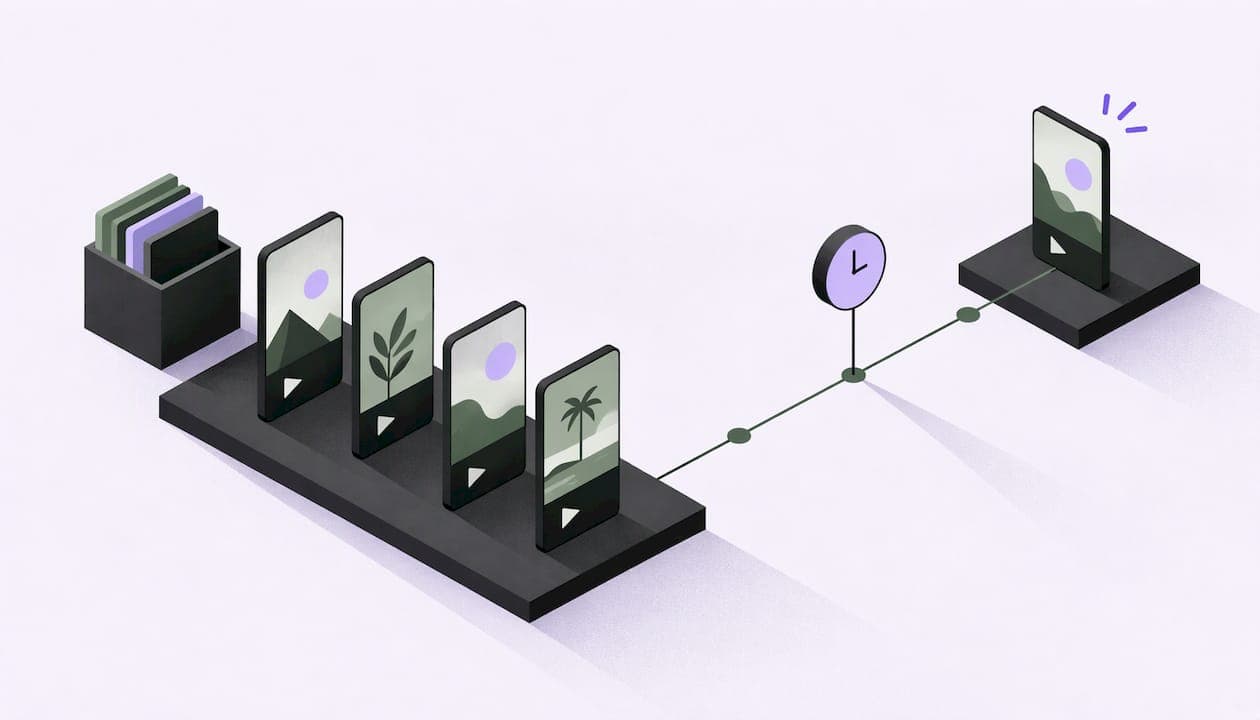
You can schedule YouTube Shorts with no extra software. A Short goes through the same upload flow as any other video: pick Schedule on the visibility step, set a date, time and time zone, and YouTube publishes it for you. This guide covers the exact steps on desktop and phone, what to check so a scheduled Short actually goes live, how often to post, and how to line up a week or a month of Shorts without doing it one upload at a time.
TL;DR
- Scheduling a Short works like scheduling any video: Create, Upload videos, then choose Schedule on the visibility step.
- You can change the time or publish right away from the video's visibility settings, so a schedule is never locked in.
- YouTube says publish time is not known to affect long-term performance, so pick a time you can keep rather than chasing a "perfect" hour.
- Choose a posting frequency you can sustain over months. Consistency beats bursts.
- For many Shorts at once, batch your uploads or use a tool that clips, captions and schedules in one workflow.
Table of Contents
- How to schedule a YouTube Short in YouTube Studio
- How to schedule a Short from your phone
- What to check so a scheduled Short really publishes
- Changing or cancelling a scheduled Short
- Does scheduling affect views?
- How often to post YouTube Shorts
- Scheduling Shorts in bulk
- Our perspective on scheduling Shorts
- Put your Shorts schedule on autopilot
- FAQ
- Sources
How to schedule a YouTube Short in YouTube Studio
Scheduling is built into YouTube Studio on desktop, and the steps are the same ones YouTube documents for regular videos. According to YouTube's help page on scheduling publish time, you select Create, then Upload videos, choose your file and enter the details, click the Schedule card, set the date, time and time zone, and then select Schedule.
Here is the sequence in practice:
- Sign in to YouTube Studio on desktop.
- Click Create in the top right, then Upload videos.
- Select your vertical video file. If it is square or vertical and short enough, YouTube treats it as a Short.
- Fill in the title, description and audience setting.
- Move through the steps until you reach Visibility.
- Choose Schedule, then set the date, time and time zone.
- Click Schedule to confirm.
YouTube also states that to publish a video later, the upload page needs the video set as scheduled or private first. If you pick Schedule on the visibility step, this is handled for you.
Titles and descriptions before you schedule
A scheduled Short is a finished Short, so do the polish before you click the button. Write the title and description now, not on the day. Check the first frame and the captions. Once the upload is scheduled, you can still edit details, but a clean upload means one less thing to remember on a busy publishing day.
How to schedule a Short from your phone
The YouTube mobile app supports the same idea. The path looks like this:
- Open the YouTube app and tap the + button.
- Record a Short or choose a video from your gallery.
- Move to the details screen and tap Visibility.
- Choose Schedule and select the date and time you want it to go live.
- Tap Upload Short to save it as scheduled.
Menu labels and button positions shift from time to time as the app updates, so if a screen looks different, look for Visibility on the details screen and the Schedule option inside it. If you edit mostly on a laptop, uploading in Studio on desktop is usually faster, because you can see titles, descriptions and the schedule card on one screen.
What to check so a scheduled Short really publishes
A schedule only helps if the video goes out on time. Run through these checks before you walk away.
Time zone and the date on the watch page
YouTube's scheduling guidance says the date shown on the watch page is based on Pacific Standard Time. If you schedule in a time zone that is ahead of PST, the date viewers see can differ from the one you set in Studio. YouTube's help page spells this out. If you work with an audience in another region, confirm the time zone on the schedule card every time rather than assuming it matches your last upload.
Account standing
The same help page notes that a Community Guidelines strike can stop a scheduled video from publishing during the penalty period. If your channel has any restriction, look at your channel status in Studio before you queue a week of content.
Does it qualify as a Short?
Scheduling does not turn a video into a Short. Format does. YouTube states that, since October 15, 2024, standard channels can have uploads categorized as Shorts when they are square or vertical and up to three minutes long. So a 2:30 vertical clip qualifies, and a horizontal one does not, however you schedule it.

Copyright claims on longer Shorts
The same YouTube page explains that a Short longer than one minute with an active third-party copyright claim of any type is blocked globally. It will not be playable or recommended, and it is not eligible for monetization, though the channel is not penalized. If you clip from streams, podcasts or shows that contain licensed music or footage, review that before the upload date, not after.
Changing or cancelling a scheduled Short
Plans change. YouTube lets you adjust a scheduled video, as described on its scheduling help page. To move the time, change the visibility to Private, edit the draft and choose a new time. To publish immediately, change the visibility to Public and then publish.
A practical habit: open your scheduled content once a week and read through it against what is happening in your niche. If a clip refers to news that has moved on, you can pull it or reschedule it in seconds.

Does scheduling affect views?
This is the question behind most searches for the best posting time. YouTube's own performance FAQ says publish time is not known to impact long-term performance. Publishing when your audience is most active can help early viewership, but it is not known to change long-term viewership. The recommendation system aims to match videos to the right viewers regardless of when they were uploaded.
Independent data points the same direction. An analysis from YTDetective on Shorts timing found no upload hour or weekday that reliably beat the others, and reported that the hour of upload explained well under 1% of the variation in views in its model.
What this means for you:
- Use scheduling for reliability, not for a magic hour. A Short that goes out every Tuesday and Friday at the same time builds a habit with your viewers.
- If you want a starting point, check when your audience is active in YouTube Analytics and schedule near those times. Treat it as a small early-views nudge, not a growth hack.
- Spend the time you save on what clearly matters: the first seconds, the clip choice and the captions.
How often to post YouTube Shorts
There is no single correct number, and YouTube does not give one. Its upload schedule tips for Shorts frame the decision around three things:
- Frequency: how often you upload.
- Consistency: whether you can stick to the plan and tie content to specific days.
- Content volume: which Short formats or series you are producing more of.
The same guidance tells creators to make sure the frequency is sustainable over the long term, and to weigh production cost against return and the time it takes to make each Short.
Building a schedule you can keep
Start from your capacity, not from what a bigger channel posts.
- Count your source material. A weekly long video, a few streams or a podcast episode each contain many potential clips. Your raw supply sets a sensible ceiling.
- Pick days, then fill them. Decide on fixed publishing days first. A recurring slot is easier to maintain than a vague goal like "post more."
- Give formats a day. If you run a recurring series, such as a highlights roundup or a quick-tip format, tie it to a particular weekday so viewers learn when to expect it.
- Review monthly. Look at your Analytics. If retention holds up when you post more, raise the cadence a little. If quality slips or you are burning out, step back.
A modest rhythm you hold for six months will outperform a heavy rhythm you abandon in three weeks.
Scheduling Shorts in bulk
Studio's flow is simple, but it is one upload at a time. If you publish daily, or you manage several channels, the repetition adds up: export, upload, title, schedule, repeat. Most of the time goes into the work before the schedule card, which is finding the clips, reframing to vertical and adding captions.
A batch workflow usually looks like this:
- Pick one session a week for clip production.
- Pull every candidate moment from your latest long video, stream or episode.
- Cut and reframe the best ones to vertical, and caption them.
- Queue them across the week at your fixed days and times.
- Review performance and let the results shape the next batch.
You can do this by hand in an editor plus Studio. A dedicated clipping platform can compress steps two through four into a single pass, which matters most for streamers who come off a four-hour broadcast with dozens of possible moments, and for agencies running many client channels with different schedules.
Our perspective on scheduling Shorts
We built ClipLab around one observation: scheduling is the easy part. The hard part is deciding what to schedule.
Most creators already know how to press Schedule in Studio. What eats their week is watching a long video again, hunting for the moment worth posting, cutting it to vertical, captioning it and then doing that again tomorrow. When that work is manual, the schedule runs dry. A calendar with nothing to fill it does not help anyone.
That is why our platform finds the strongest moments in long videos or streams, reframes them for vertical, adds word-by-word captions in the style you choose, scores each clip and explains why it was selected. It also lets you batch-schedule and auto-publish to your channels, so the posting rhythm you choose is the rhythm you actually keep.
We also think a schedule should get smarter over time. ClipLab learns from YouTube Analytics so later clips can be shaped by what held viewers on earlier ones. Instead of guessing at a perfect hour, you let your own channel data guide what you post next. Teams can work in shared workspaces with assigned roles, which suits agencies handling several channels.
Our view: pick a cadence you can sustain, automate the repetitive clip work, and spend your attention on the long-form content that feeds everything else.
Omatic
Put your Shorts schedule on autopilot
If you want a steady stream of Shorts without cutting each one yourself, ClipLab takes links from YouTube, Twitch, Kick, podcasts and other sources, finds the moments worth clipping, captions them word by word and queues them for publishing. You can start with a free trial of ClipLab and see how your own content turns into a week of Shorts.

Plans are published on the site. ClipLab Lite is $29 per month. ClipLab Starter is $50 per month or $500 per year. ClipLab Pro is $125 per month or $1,500 per year. For channel-wide operation, see Channel Pro, or the managed Done for you option, where we run the clipping for you. Both are priced on request. To see the workflow end to end, read how ClipLab works.
FAQ
Can you schedule YouTube Shorts on YouTube?
Yes. In YouTube Studio, choose Create, then Upload videos, add your file and details, and pick Schedule on the visibility step. Set the date, time and time zone, then confirm. The same option is available in the mobile app under Visibility.
Can I edit or cancel a scheduled Short?
Yes. YouTube explains that you can switch the video to Private to edit the scheduled time, or set it to Public and publish it immediately. Do this from Studio or the app before the publish time arrives.
What is the best time to post Shorts?
YouTube says publish time is not known to impact long-term performance, though posting when your audience is active may help early views, per its performance FAQ. Check when your viewers are online in Analytics, choose consistent slots, and focus on clip quality.
How often should I post Shorts?
Choose a frequency you can keep for the long haul. YouTube's upload schedule tips point to frequency, consistency and content volume, and advise weighing production cost and time against return. Begin with the number of clips your source videos can reliably supply.
How long can a scheduled Short be?
Up to three minutes, as long as the video is square or vertical. YouTube started categorizing such uploads as Shorts for standard channels on October 15, 2024. Check for third-party copyright claims on anything over one minute before you schedule it.
Sources
- Schedule video publish time - YouTube Help
- Upload schedule tips for Shorts - YouTube Help
- YouTube performance FAQ and troubleshooting - YouTube Help
- Understand three-minute YouTube Shorts - YouTube Help
- Best time to post YouTube Shorts: what our data shows - YTDetective